Budget AVCHD editing in Windows: VoltaicHD for PC and Windows Movie Maker!

I’ve previously written about How to edit AVCHD footage on Mac OSX, at the time of writing that article there weren’t many options for editing AVCHD footage on either Mac OSX or Windows operating systems. VoltaicHD is a great application that helped Mac OSX users in particular because at that time there was no way of editing AVCHD on Mac at all.

Many Mac users had purchased AVCHD cameras and were frustrated by the complete lack of software available for editing AVCHD on Mac and even Windows users had to wait quite a few months before Sony released a version of their Vegas software that supported AVCHD.

Since then though, there are quite a few options for Mac users: Final Cut Studio and Final Cut Express offered mid to high end products for the Mac platform. Also Apple’s own iMovie software had a complete revamp and amongst many new features was direct support for AVCHD based cameras, a perfect budget solution as the software was included free with any new Mac or as part of Apple’s iLife suite for about £55 / $79.

However for Windows users, despite the availability of software like Sony Vegas, many people wanted a way to edit AVCHD without having to buy editing software that cost as much (or more!) than they spent on their cameras in the first place! There was no easy way to do this on a low budget, you could find articles on the web with instructions on how to use various applications or utilities to convert the AVCHD files into various formats, but nothing simple that would allow non-technical users to edit AVCHD footage. But now there is an easy solution.

VoltaicHD for PC & Windows Movie Maker: A low budget way to edit AVCHD!

The company that produced the VoltaicHD application for Mac OSX, Shedworx, has released a Windows version of VoltaicHD that is compatible with both Windows XP and Vista. You can convert your AVCHD footage into WMV or AVI format video which can then be used with Windows Movie Maker or other video editing application for Windows.

Windows Movie Maker is a video editing package that comes with both XP and Vista, and contrary to popular belief it is actually capable of working with HD video footage, but just not with native AVCHD footage. That’s where VoltaicHD fits in, by converting the footage to WMV format you can edit the footage from your HD video camera using just Windows Movie Maker!

Tips for converting / editing AVCHD with Voltaic and Windows Movie Maker

There are a few minimum system requirements to run VoltaicHD for PC but any reasonably modern PC should be capable of processing the AVCHD files. It’s worth noting of course that HD video is very intensive to work with and requires greater resources than editing conventional standard definition video footage. On a system with the minimum hardware requirements (as detailed below) it will take about 2 minutes to convert a 10 second AVCHD clip. It is obviously recommended to have as powerful a system as you can manage but even a slightly older machine should be capable of producing results – as long as you have a little patience and perspective! On the plus side the converted video files result in uncompressed HD video which can be played back more easily than the original AVCHD files on the minimum hardware spec machine.

Minimum Hardware requirements: At least 1GB of RAM, at least a 2Ghz P4 processor or equivalent processor and as much hard disk space as possible. AVCHD footage uses about 120Mb per minute of video footage, once this footage has been processed it uses about 500Mb per minute of video, so disk space is quickly used up.

Minimum Software requirements: Either Windows XP SP2+ or Vista, Microsoft Movie Maker 2.1+ and Windows Media Player v11+.

VoltaicHD can convert AVCHD footage to either WMV or AVI formats, however WMV is the preferred format as it keeps the aspect ratio correct no matter the resolution of your source AVCHD footage. There is no loss in picture quality when converting the AVCHD footage to either WMV or AVI. However, the audio track is affected during conversion, AVCHD can use Dolby 5.1 surround sound but only Sony cameras use this, Panasonic, Canon and JVC use stereo only. Any Dolby 5.1 sound is dropped back to stereo audio as this is all that Window Movie Maker supports.

Converting files using VoltaicHD for PC

You need set up the various preferences before using VoltaicHD for the first time, you can go back and change these preferences later by going to the Tools->Options menu option, or via the toolbar button.

  • Scratch file location: VoltaicHD creates temporary files during conversion, you can set where these should be created to a location of your choice. If you are converting large files from an external storage location, and want to preserve disk space on the machine running the conversions, you should set this location to be on the external storage device.
  • Output Directory: You can set where the final converted final files will be placed.
  • Extract 5.1ch Audio: The audio track from your movie can be extracted during the conversion process.
  • Output Format: WMV format is the recommended format for your converted clips.

Once you’ve got VoltaicHD installed on your system and Preferences all set up you are ready to go. Although it’s worth keeping in mind some suggestions for converting your AVCHD clips:

  • Make sure to copy all clips from your camera onto your hard drive before converting. It’s not worth risking trying to convert footage straight from your camera as it can be problematic.
  • Keep a VoltaicHD shortcut on your Desktop, this makes it easy to just drag AVCHD clips onto it ready for conversion, or just to open up the application ;)
  • Try closing down any unnecessary programs during the conversion process. Converting AVCHD footage is very processor / memory intensive so freeing up resources on your computer helps a lot.
  • Watch out when converting large AVCHD files if using a FAT32 formatted drive as the converted files may result in files larger than the 2Gb limitation of FAT32 will allow.

Next, add some AVCHD files to the file list and press Start. The converted files are created in the same directory as the source files by default, or to the location you set in your Preferences.

Setting up and editing in Windows Movie Maker

You need to set up Movie Maker to the correct video format for your region, either PAL or NTSC, and also to widescreen (16:9). Go to Tools->Options and click on the Advanced tab. You should then see a section called Video properties where you can set the correct format (NTSC or PAL) and also the Aspect ratio to 16:9. There’s no need to set the video format (NTSC or PAL) in VoltaicHD as this is auto-detected from the AVCHD clip.

You can now edit your HD footage just like you would with any other footage in Windows Movie Maker.

Exporting from Windows Movie Maker

VoltaicHD provides an export profile for Movie Maker 2.1 on Windows XP which ensures that the full HD resolution of your completed movie can be exported.

To Export from Movie Maker, select the File->Save Movie menu option. This starts the Save Movie Wizard. Use the following settings:

  • Movie Location: My Computer
  • Choose a name for your exported movie
  • Movie Setting: select Other, then VoltaicHD 1080 from the drop down.
  • Note: Select VoltaicHD 1080 PAL or NTSC, based on the format you are using.

If you are using Movie Maker in Windows Vista, then VoltaicHD provides an export profile to ensure that the full HD resolution of your completed movie can be exported. If your movies are in 1440×1080 resolution you will also need to manually apply an Effect to your clips to retain the full 16:9 aspect or Widescreen mode. Once your clips are in your storyboard or timeline, right click each of the clips and select “Effect”. On the next window under “Available Effects” scroll down and click on “VoltaicHD Widescreen” then select “Add >>". Then select OK. The preview window should now be showing your clip in widescreen mode.

To Export from Movie Maker, select the File->Publish Movie menu option. This starts the Save Movie Wizard. Use the following settings:

  • Movie Location: My Computer
  • Choose a name for your exported movie
  • Movie Setting: select Other, then VoltaicHD 1080 from the drop down.
  • Note: Select VoltaicHD 1080 PAL or NTSC, based on the format you are using.

Movie Maker will then create your HD movie! All thanks to VoltaicHD for PC!

Playing back your HD footage

If you want to watch your HD footage on something other than your PC then you can watch on XBox, PS3 or any Blu-ray player. You’ll need something like Nero to burn a blu-ray DVD (AVCREC format).

The makers of VoltaicHD for PC make some software called RevolverHD which can create blu-ray compatible DVDs. However, there’s currently only a Mac version available, so if you happen to have access to a Mac then you can use that. If you’d like a PC version of RevolverHD then get in touch with the guys at Shedworx and let them know.

Happy editing :)

Update – VoltaicHD 2 released in October 2009

Shedworx have released version 2 of VoltaicHD adding new features such as preview of AVCHD / AVCHD Lite clips, native editing of AVCHD video and the ability to upload video to YouTube. I’ve written a post with an overview of VoltaicHD 2.
Burn Blu-ray compatible and AVCHD DVDs using RevolverHD for Mac

You’ve got a spanky new HD TV, you’ve been editing your HD footage on your Mac. But how do you get your HD footage on it without buying a blu-ray burner and a blu-ray player?
The answer: Burn Blu-ray compatible DVDs using RevolverHD for Mac OSX and play your HD footage from a regular DVD disc.

RevolverHD for Mac – Make blu-ray DVDs

RevolverHD (another product from the makers of VoltaicHD) which helps you play your edited HD footage from iMovie08 / iMovieHD / Final Cut Express on the Playstation3. It can also create Blu-ray compatible AVCHD DVDs using the unedited AVCHD clips directly from your camera.

You can download the demo version which will give you 3 test exports or burns. There’s an easy to follow user guide which will take you step by step through the process for iMovie08, iMovieHD and Final Cut Express.

Make blue-ray DVDs, even on non-Intel Macs

Like it’s companion product VoltaicHD, RevolverHD will work on both Intel and PowerPC Macs on both OSX 10.4 and 10.5 which is good news if you’ve got an older Mac without an Intel processor. Don’t forget though that the conversion process used by RevolverHD is pretty intensive so using your old G3 iMac isn’t going to be very fast, although it should be possible!

It’s also worth noting that AVCHD DVDs may not work on some blu-ray players, check out the RevolverHD FAQ for more details.

I’ve done some test discs which have successfully played back on a friend’s Playstation 3 so it certainly seems to do the job!

Adobe Photoshop CS4 – Some of my favourite features

Adobe have now shipped their new CS4 suites, I installed my copy of Web Premium CS4 suite which includes Dreamweaver CS4, Flash CS4, Illustrator CS4, Photoshop CS4 and Fireworks CS4. There’s some excellent new features amongst all of these apps and I’m really enjoying using Photoshop, there are a lot of new features but there’s three in particular that I really like and will be useful in my every day use of Photoshop CS4:

Pixel Grid

Photoshop CS4’s pixel grid makes working at the pixel level of detail much easier by putting a white grid outline around each pixel once beyond a certain zoom level. It can be switched off if you don’t like it but it’s a handy feature when doing user interface work where you need to make pixel accurate selections.

Smooth panning

Photoshop CS4’s smooth panning makes moving around when zoomed in much simpler. If you’re used to using an iPhone or iPod Touch then this sort of flicking movement will be familiar.

Content Aware Scaling

Photoshop CS4’s Content Aware scaling is pretty impressive stuff! You can basically resize an image and it detects the areas in between main features such as face or figures and only scales the areas in between. Great for landscape shots or even resizing user interface elements like capsule buttons etc.

There are a lot more features to Photoshop CS4 that make it worthwhile, you can see a quick overview on the CS4 Top Features page.

There are also trial versions for a lot of the apps available on the Adobe downloads page.

Also, if you want to show some love for my blog you can also purchase the CS4 apps by clicking on the CS4 ads featured on this site or by clicking this link to the Adobe Store! ;)

~Rick

Dropbox drops out of private beta: Linux client, iPhone web interface, pricing plans

I wrote an overview of Dropbox back in April when I first managed to get an invite to the private beta. Ever since then it’s been a permanent install on my laptop and my desktop machines due to it’s simple yet powerful functionality.

Dropbox launches to the public!

The good news is that it’s finally out of private beta and anyone can sign up to try it out, you can download it and / or watch the demo video at www.getdropbox.com. It’s still in beta but at least now you can register to try it without needing to be invited first.

Linux geeks get some love

As promised Linux users now have a version of the dropbox client too. This makes Dropbox a truly cross-platform backup system, so regardless of whether you are Mac, PC or Linux then you can make use of Dropbox. As ever with Linux you’ll need to check out whether it will work with your preferred Linux distro but Ubuntu and Fedora 9 are supported with users of Gentoo, OpenSUSE and Debian managing to get it running. Full info is available from the Linux Dropbox download page.

iPhone optimised web interface

There’s also an iPhone optimised web interface available if you access it via your iPhone or iPod Touch. It’s a nice little addition that makes taking a look at your file storage whilst out and about even easier.

Dropbox pricing announced

The Dropbox blog gives some indication of how much they will charge once they finally go live with a paid-for service. As you’d expect from the people who’ve made backup via Amazon’s S3 storage infrastructure incredibly easy to use there’s going to be very simple but attractive pricing. A 50GB Dropbox will cost $9.99 per month or $99.99 per year. Sounds like a great deal to me!

Update:

Randsinrepose has a great post that sums up why Dropbox is awesome, "Dumbing down the cloud".

Show Suburbia some Dropbox love by following this link to sign up at www.getdropbox.com – I’ll get a bit of extra storage space and so will you!

Top ten useful Quick Look plugins for Mac OSX 10.5

One of the best new features that OSX 10.5 Leopard introduced was Quick Look. As the name suggests it lets you take a ‘quick look’ at the contents of a file without having to open up the actual software application.

Quick Look supports plugins so third-party developers can create Quick Look plugins of their own to give access to many other file formats. I’ve found Quick Look to be such an intuitive tool to use as well as incredibly time saving due to not having to wait for Microsoft Word open up just to check the contents of a Word document. A great boost for productivity!

Here, in no particular order, are 10 of the most useful Quick Look plugins that I’ve found. Please note, some of these require payment for full use:

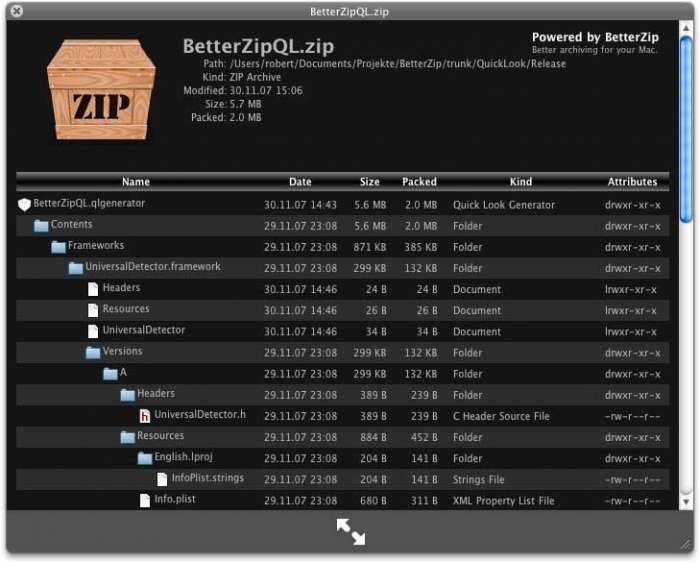
BetterZip

Allows you to preview ZIP, TAR, GZip, BZip2, ARJ, LZH, ISO, CHM, CAB, CPIO, RAR, 7-Zip, DEB, RPM, StuffIt’s SIT, DiskDoubler, BinHex, and MacBinary files.

http://macitbetter.com/BetterZipQL-1.0

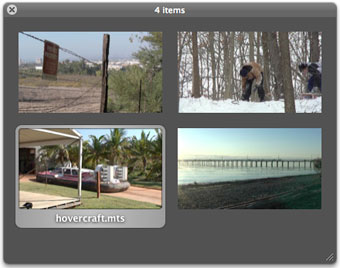
HD Quick Look

HD Quick Look lets you view the first frame of your AVCHD files. You can also view multiple files as a slide show, as an index sheet or full screen.

This is a really handy plugin for those working with AVCHD video and a perfect companion to Shedworx excellent VoltaicHD application for converting AVCHD footage!

http://www.shedworx.com/

Suspicious Package

It allows you to preview the contents of a standard Apple installer package without launching the Installer. Great for checking for any unwanted additional bits of software that sometimes companies like to add!

http://www.mothersruin.com/software/SuspiciousPackage/download.html

AppleScript

Gives a preview of AppleScript files.

http://www.kainjow.com/?p=77

FLV

Allows you to view Flash video files, please note that it requires installation of the Perian Quicktime plugin to make it work.

http://homepage.mac.com/xdd/software/flv/

EPS

Allows you to view EPS files.

http://www.eternalstorms.at/utilities/epsqlplg/index.html

Folder View

Allows you to see the contents of a folder.

http://homepage.mac.com/xdd/software/folder/

ColorXML

Enables display of XML files with indentation and XML syntax coloring.

http://www.macupdate.com/info.php/id/26194/colorxml-quicklook

SneakPeek Pro

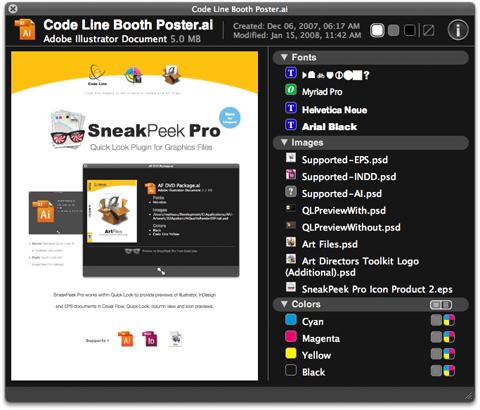
Allows you to preview Illustrator, InDesign and EPS documents in the Finder, dialog boxes and other applications. SneakPeek Pro also allows you to see fonts, images and colors used in many CS3 documents.

It works with Illustrator files even if not saved with PDF compatibility. $19.95 but worth every cent if you’re a frequent Illustrator or InDesign user!

http://www.code-line.com/software/sneakpeekpro.html

GLColorCode

Adds enhanced source code colouring for various programming languages such as PHP, Actionscript, Objective-C etc.

http://code.google.com/p/qlcolorcode/

Adobe unveil Creative Suite 4 on 23/09, AIR for Linux, Flash Player 10 Release candidate

Adobe will be unveiling the next version of their Creative Suite software on the 23rd of September. This will be done via a special web broadcast, you can sign up for email notification via the following webpage – http://adobe.istreamplanet.com.

Details of any new features have not been revealed but Adobe did release public beta versions of Dreamweaver CS4, Fireworks CS4 and Soundbooth on the Adobe Labs website a few months ago.

Adobe AIR for Linux beta released on Adobe Labs

Support for the Linux operating system has been increasing from Adobe with continual improvements to the Linux version of the Flash Player plugin. Now Adobe have fulfilled their promise of full cross-platform support for their AIR runtime with the release of Adobe AIR for Linux beta.

Flash Player 10 release candidate on Adobe Labs

A new release candidate of Flash Player 10 was released on Adobe Labs. If you haven’t already checked it out then there’s quite a few new features such as 3D Effects, a new text engine, enhanced drawing API, GPU support and enhanced sound APIs to name a few.

Once you’ve downloaded it then go an check out the Feature demonstrations page to get a taste of these new features.

One thing to keep in mind though, if you a frequently upload images and video to sites such as Flickr, Vimeo and even Adobe’s own Photoshop Express web apps then you’ll want to avoid this version of the Flash Player just now as there’s still a ‘bug’ which affects the uploaders for these sites. It seems to be a hotly debated issue just now but it appears that Flash Player 10 stops these kinds of image uploaders from working due to a new security restriction. You can catch some of the discussion on this Flash Player thread.

Singularity Conference gets ‘head’ed off at the pass

If you’re a web developer / designer or into the web in anyway then you’re going to want to check out the <head> web conference that takes place October 24-26, 2008. <head> is a bit different than your regular conference, The conference website describes it like so:

The premise for <head> is simple: instead of making you come to the web conference, let’s make the web conference come to you.

<head> is a web conference with all of the traditional elements. We have live speakers, presentations, question and answer sections, and networking opportunities. The twist is that the conference takes place everywhere – all over the world – and at real-world gatherings called local conference hubs.

And we use the Internet to tie it all together.

Now, you might be thinking “That sounds cool, but wasn’t someone already running a conference like that?”. If you were thinking that then don’t worry, you’re not going daft! <head> is actually the new name for the conference. The conference was formerly known as Singularity but due to an objection from a company that holds a trademark for the word Singularity relating to conferences the lead organiser, Aral Balkan, had no choice but to change the name!

Anyway, go over and check out the website to find out more about the conference. There’s an early bird ticket price of just $99 if you book soon!

Update 22 Aug 2017: The above is an old post and the conference is past now.

http://www.headconf.org

A List Apart Web Design Survey 2008

I took the “A List Apart Web Design Survey” last year and it was well worth doing as it was the first effort to try and establish a picture of the working conditions of people who are involved in building or maintaining websites.

You can read the results of last years survey at www.alistapart.com/articles/2007surveyresults, you can download the findings of the survey as a PDF document.

Last year over 33,000 people took part in the survey and the organiser intend to improve on the results of last year’s survey:

This year?s survey corrects many of last year?s mistakes, with more detailed and numerous questions for freelance contractors and owners of (or partners in) small web businesses. There are also better international categories, and many other improvements recommended by those who took the survey last year.

Review: Apple Composite AV cable for iPod Touch, iPhone, Nano etc

Picture of Apple's Composite AV cable for iPod Touch / iPhoneI just bought myself the Apple composite AV cable for my iPod Touch so that I could hook it up to my TV to watch BBC iPlayer programmes. At first I thought the ยฃ35 price tag was pretty steep, but seeing as I was at the Apple Store in Glasgow I thought I’d treat myself to something!

On closer inspection though I saw that it isn’t just an AV cable but it also has a USB cable which plugs into a dinky little power supply which comes with both UK and North American power supply connectors, so basically it can be used to charge your iPod and also means that you don’t run out of power whilst watching programmes on it.

Basically the AV cable enables you to watch or listen to any video, audio or images that are on your iPod directly on your TV, this also includes the YouTube application too. Image slideshows can also be viewed via the AV cable.

Those standard features are pretty awesome in themselves but the killer app combo for me is this:

  1. The BBC offer a version of their iPlayer specifically for the iPod Touch and iPhone
  2. The AV cable for the iPod Touch / iPhone can play the iPlayer content on your TV

Screenshot of BBC iPlayer for iPod Touch / iPhoneIt’s a pretty simple combo but it’s awesome being able to play all the iPlayer content on your TV instead of on your computer. The great thing too is that the iPlayer content via the iPod is actually better quality than the streaming Flash version that you would view on your computer due to it being delivered as H.264 encoded video rather than the Flash ON2 codec that the regular iPlayer uses.

Well, I can’t recommend it enough, the price tag might seem a bit high at first but it’s a high quality cable that provides a power supply and AV connections as well as the ability to use it as a regular USB iPod cable too. If you happen to live in the Uk and have access to the BBC iPlayer then it makes that accessible right in your living room.

The AV Cable is also available for Component video connections too, you can pick one up from the Apple Store online:

Composite AV Cable

Component AV Cable

~Rick

Dropbox: Putting a human face on Amazon’s S3 storage system

Picture of Dropbox logoI’ve recently been checking out Dropbox, I’d come across the website for it before and checked out the screencast showing it’s features and it looked pretty good, a few people on Twitter mentioned getting invites to the invite only beta program so I eventually managed to get hold of an invite to try it out for myself.

I’ve been on the look out for an off-site backup system that makes use of some kind of distributed ‘cloud’ based storage system such as Amazon’s S3. I’ve tried Mozy and also JungleDisk and they both worked well enough but I didn’t really take to them. Both of those options do have the main feature I was looking for in that they offer a cost-effective way to backup lots of data online, additionally Mozy’s Mac client in particular has a great strength in that you can tell it which files and settings you want it to backup such as iCal data etc.

Dropbox is a bit different than either Mozy or JungleDisk, it doesn’t just offer a way to backup files but allows a great way to synchronise data between multiple computers and share files with other dropbox users such as friends, family etc.

You simply install the Dropbox software on your computer, currently there’s support for both Mac OSX and Windows XP / Vista, Linux support is planned but isn’t available at the time of writing. Once it’s installed on OSX you get a new icon in your menu bar at the top of the screen and you’ll also find a new folder called ‘dropbox’ has appeared in your sidebar (the actual folder is found in the root of your Home directory).

Dropbox menubar iconDropbox folder in the sidebar

Any files that you copy into the Dropbox folder instantly start to get backed up into the online storage space, all this is done in the background. All very easy, simple to setup and simple to use.

Dropbox’s file versioning

However, that’s not all that Dropbox offers. Every file that you have synced with Dropbox gets updated automatically when you make changes to the files as you’d expect, however Dropbox provides access to all of the previous versions of files. You can access the files via the web based admin system and can roll back files to previous versions:

Screenshot of Dropbox's file revision process

It’s perfect if you happen to have made a change to a file which you didn’t mean to make, or if you’ve deleted a file you now need. You can simply view the file as it was at that time and restore the file to that version. It’s not a replacement for a proper version control system like Subversion but for the average user it’s a brilliantly easy system.

Dropbox let’s you share

By default Dropbox comes with two folders already setup, ‘Photos’ and ‘Public’. The Photos folder allows an easy way to create a web gallery of photos simply by adding images to it, this is accessible via a direct URL so you can share this with other people:

Screenshot of Dropbox's photo gallery

The other way that you can share with Dropbox is the ability to create folders which you can make accessible to other Dropbox users.

Screenshot of Dropbox's sharing processThis provides an easy way to make files available to others, perfect as a way of collaborating on documents etc.

You get all the benefits of the file versioning so you can easily undo any changes that anyone who has access to those files has made.

All in all it’s a pretty impressive set of features, so far I haven’t had any problems using it and it’s worked exactly as expected.

There’s a great screencast available from the Dropbox website that gives a great overview of the system in practice, so even if you can’t get a beta invite you can still get a taste of what it’s like.

Costs for using Dropbox

Pricing for Dropbox is $99 per year for 50GB storage with free accounts at 2GB. Pricing has yet to be announced but there will be a free account of about 1Gb apparently with tiered pricing plans above that. If you can manage to get an invite from somebody while it’s still in beta then go for it, it’s a great cross-platform solution making great use of the huge potential of Amazon’s S3 storage infrastructure.

Dropbox are now offering 50GB and 100GB accounts, why not show Suburbia some love by following this link to sign up at www.getdropbox.com – We’ll both get an extra 250mb storage for free!